Schema Markup
Schema markup (structured data) helps search engines understand your content and can unlock rich results like star ratings, prices, and FAQs in search listings.
What is schema?
Schema markup is JSON-LD code added to your pages that describes your content in a structured way. Google and other search engines use this data to create rich snippets — enhanced search results that stand out and get more clicks.
Benefits
- Rich results in Google Search (product prices, ratings, availability)
- Better understanding of your content by search engines
- Improved click-through rates from search results
- FAQ snippets that take up more space in search results
- Breadcrumb navigation in search results
Schema types we support
| Schema Type | What it does | Best for |
|---|---|---|
| Breadcrumb | Navigation path in search results | All pages |
| Collection | Category/collection info | Collection pages |
| Product | Price, availability, and ratings | Product pages |
| Product Merchant Listing | Enhanced product data for shopping | Product pages |
| LocalBusiness | Physical store info | Homepage |
| Article | Blog post metadata | Blog posts |
| Blog | Blog listing metadata | Blog index |
| Organisation | Company info and logos | Homepage |
| WebSite | Site-level search and name | Homepage |
| VideoObject | Video metadata for rich results | Pages with videos |
How enabling works
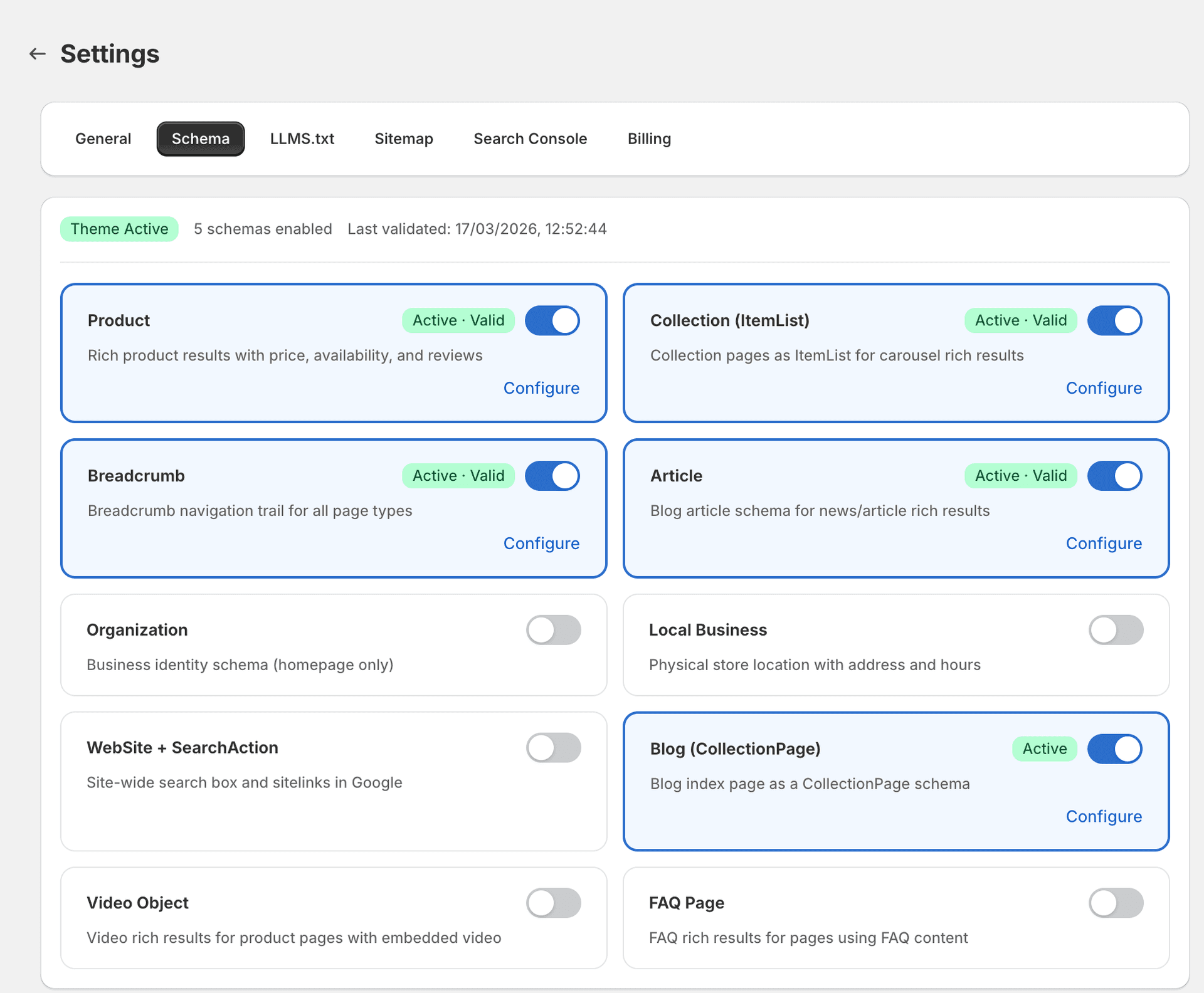
Go to Schema
Open the Schema section in the SitePx navigation.
Toggle on schema types
Enable the schema types you want to add to your store.
Configure required fields
Fill in any required fields for each type (e.g. business address for LocalBusiness, social profiles for Organisation).
Automatic injection
SitePx injects the JSON-LD into your theme automatically.
Enabling the app embed
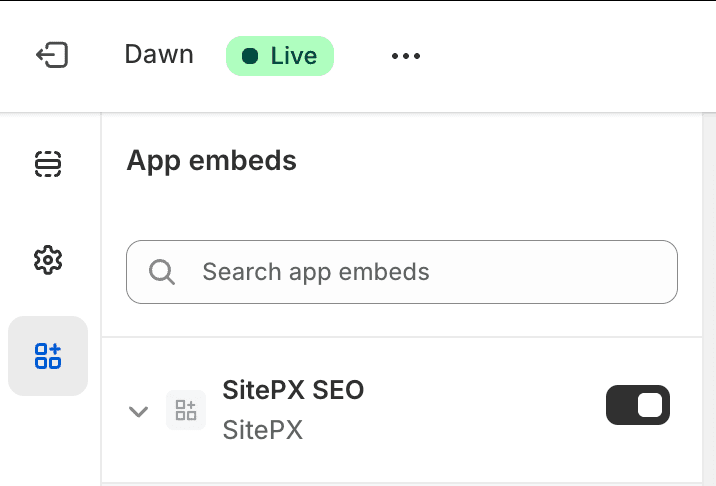
In order for any schema markup to become active on your storefront, you need to enable the SitePx app embed in your Shopify theme. Without the app embed enabled, schema types will be configured but not injected into your pages.
Follow the on-screen prompt
When you enable a schema type, SitePx displays a prompt to go to your theme editor. Click the link to be taken directly there.
Enable the app embed
In the Shopify theme editor, go to App embeds, find SitePx, and toggle it on.
Save your theme
Click Save in the theme editor. Your schema markup will now be injected on all relevant pages.
Warning
Validation
After enabling schema, SitePx validates your markup against Google's requirements. You'll see:
- Valid (green) — Ready for rich results.
- Warnings (yellow) — Functional but could be improved.
- Errors (red) — Must be fixed before Google will use the data.
Use Google's Rich Results Test to verify externally.
Handling duplicate schema
If your theme already outputs schema markup, SitePx detects this and:
- Warns you about conflicts
- Offers to override (recommended for consistency)
- Lets you keep both (not recommended as it confuses search engines)
Best practice: use either your theme's schema or SitePx's, not both.
For detailed configuration of each schema type, see Configure Each Schema Type.