Your First SEO Audit
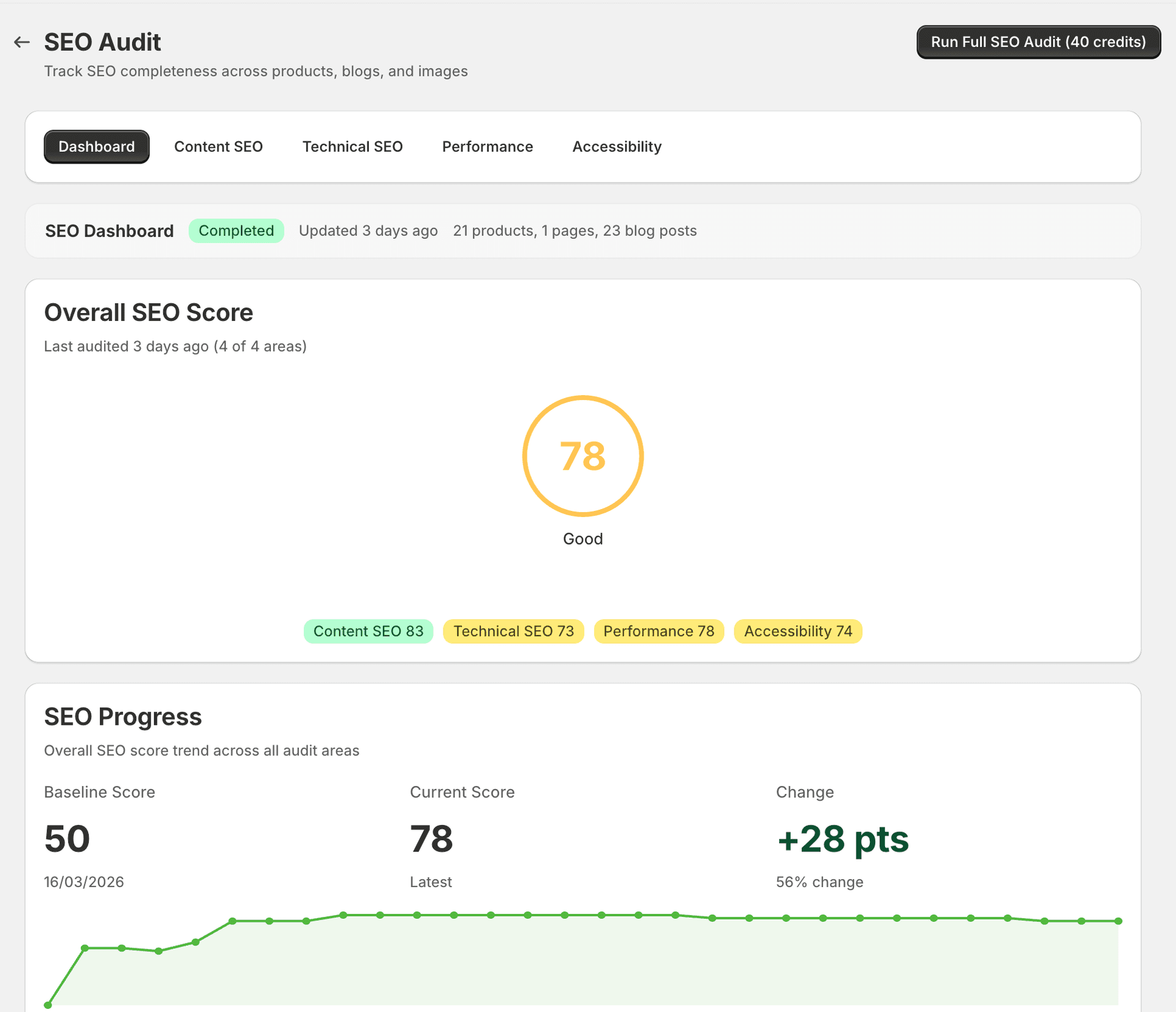
Running an SEO audit gives you a complete picture of your store's search health. Here is what to expect.
Consumes credits
Running a full SEO audit consumes 40 credits.
How to run an audit
Open SitePx from your Shopify admin
Navigate to Apps → SitePx in your Shopify admin panel.
Navigate to the SEO Audit section
Click SEO Audit in the left-hand navigation.
Click “Run SEO Audit”
This starts a comprehensive scan of your store across all four audit categories.
Wait for the audit to complete
The audit runs as a background job. You can close the page and come back later — your results will be waiting for you.
Runs in background job
The audit runs in the background and typically takes 2–10 minutes depending on your store size. You can track progress in the Jobs section.
What the audit checks
The audit scans your store across four categories:
| Category | What it checks |
|---|---|
| Content | Meta titles, meta descriptions, headings, keyword usage, thin content, duplicate content |
| Technical | Canonical URLs, broken links, redirect chains, robots.txt, hreflang tags |
| Performance | Core Web Vitals, page load speed, render-blocking resources |
| Accessibility | Alt text coverage, colour contrast, heading hierarchy, ARIA labels |
Understanding your results
Each issue found by the audit is classified in two ways: by severity and by fix type.
Severity
- Critical (red) — Significant SEO impact. Fix these first.
- Warning (orange) — Moderate impact. Should be addressed after critical issues.
- Info (blue) — Suggestions and best practices that can improve your SEO over time.
Fix type
- AUTO — SitePx can fix this automatically. One click and it is done.
- GUIDED — SitePx provides a step-by-step walkthrough to help you apply the fix.
- MANUAL — Requires manual intervention in your theme or Shopify admin. SitePx explains what to do.
Quick wins
After your first audit, here is the fastest path to improving your score:
- Start with critical AUTO issues. These can be fixed in bulk with a single click and have the biggest impact on your score.
- Work through GUIDED fixes in the Content tab. These usually involve updating meta titles, descriptions, or headings with AI-suggested improvements.
- Review the Dashboard daily to stay on top of your priority queue and track progress.
Next steps
- Content audit — Learn more about what the content audit checks and how to act on the results
- Dashboard — Use the dashboard to prioritise and track your SEO work