Dashboard
Your Dashboard is the daily command centre for SEO. It shows what matters most and helps you prioritise your time.
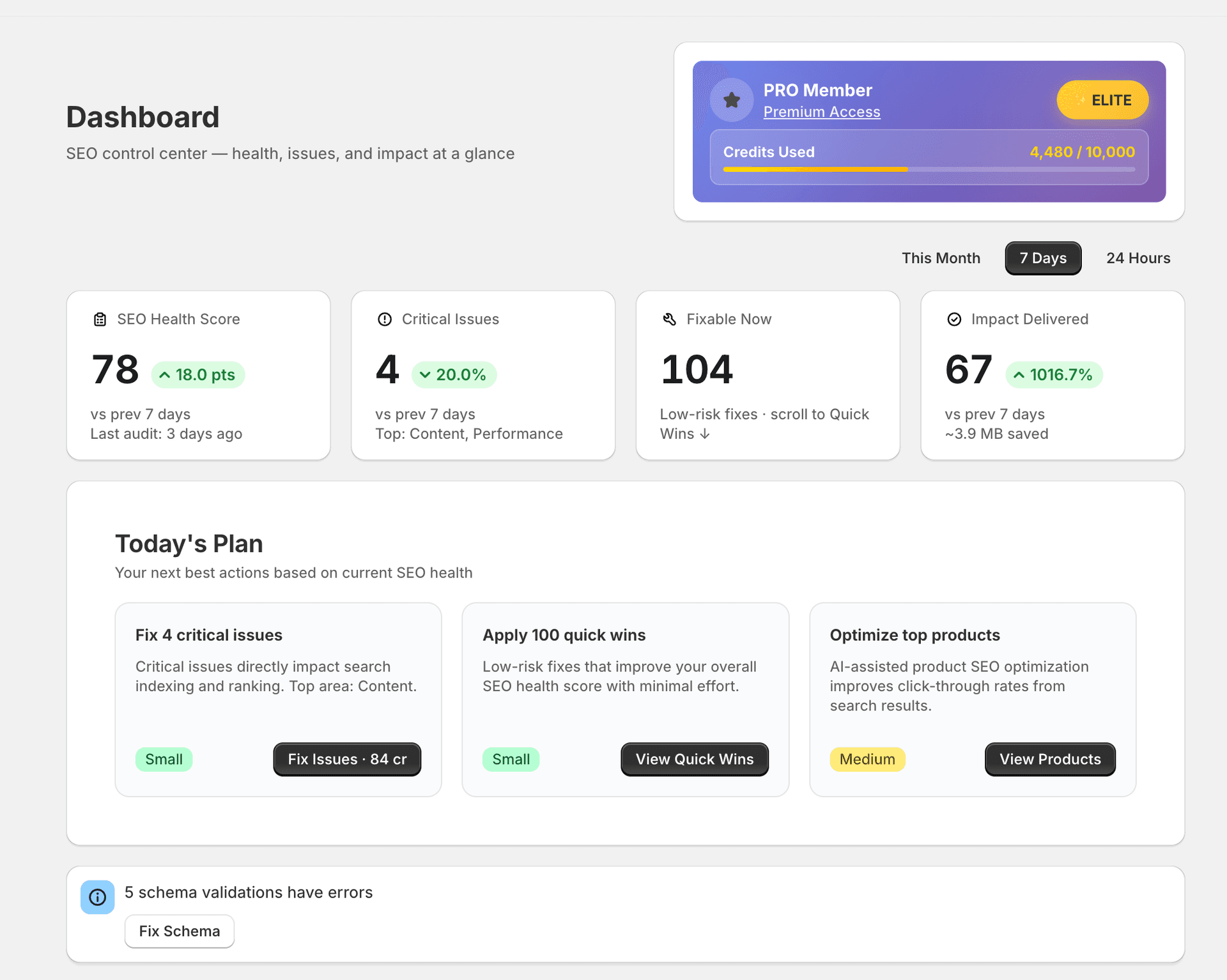
Health tiles
Four summary tiles at the top of the Dashboard give you an at-a-glance view of your store's SEO status:
| Tile | What it shows |
|---|---|
| SEO Health | Your overall score as a percentage, based on weighted issues across all audit categories |
| Critical Issues | The number of unresolved critical-severity issues currently affecting your store |
| Fixable Now | Issues that can be auto-fixed or have guided fixes ready to apply |
| Impact Delivered | Cumulative count of issues resolved since you started using SitePx |
Priority queue
The priority queue surfaces the most impactful issues first. Issues are ranked by a combination of:
- Severity (critical issues appear first)
- Potential traffic impact (issues on high-traffic pages rank higher)
- Ease of fix (quick wins are prioritised over complex manual fixes)
Working through this list daily is the most efficient way to improve your SEO score. Each item links directly to the relevant fix or optimiser page.
Quick wins
The quick wins section is a filtered view of the priority queue showing only AUTO-fixable issues. These are the fastest way to improve your score — many can be resolved in bulk with a single click. If you only have five minutes, start here.
What changed
This section shows recent changes across your store's SEO: fixes that were applied, new issues detected, and score movements. It is particularly useful for tracking progress after bulk operations or a round of manual fixes.
Activity feed
A chronological log of every action taken in SitePx: audits run, fixes applied, content generated, images optimised, and schema updated. Use it to review what has been done and when, especially if multiple team members have access to the app.
Alerts and monitoring
The Dashboard highlights important changes that need your attention:
- New critical issues detected since your last audit
- Score drops that may indicate a regression or new problem
- GSC anomalies (if Google Search Console is connected) such as sudden drops in impressions or clicks
You can snooze any alert that is not relevant right now. Snoozed alerts will not appear in your priority queue until the snooze period expires.
Making the Dashboard useful
A few habits that will help you get the most out of the Dashboard:
- Run audits regularly. Weekly is a good cadence for most stores. This keeps your score current and catches new issues early.
- Work through the priority queue first before exploring other tabs. The queue is ordered by impact, so the top items give you the best return on your time.
- Check “What changed” after bulk fixes to confirm that your changes had the expected effect on your score.
- Connect Google Search Console to see real search performance data alongside your SEO health metrics. This helps you correlate fixes with actual traffic improvements.