Operations Center
The Operations Center lets you monitor, triage, and manage all background jobs across SitePx — from SEO audits and content generation to sitemap updates and image optimisation.
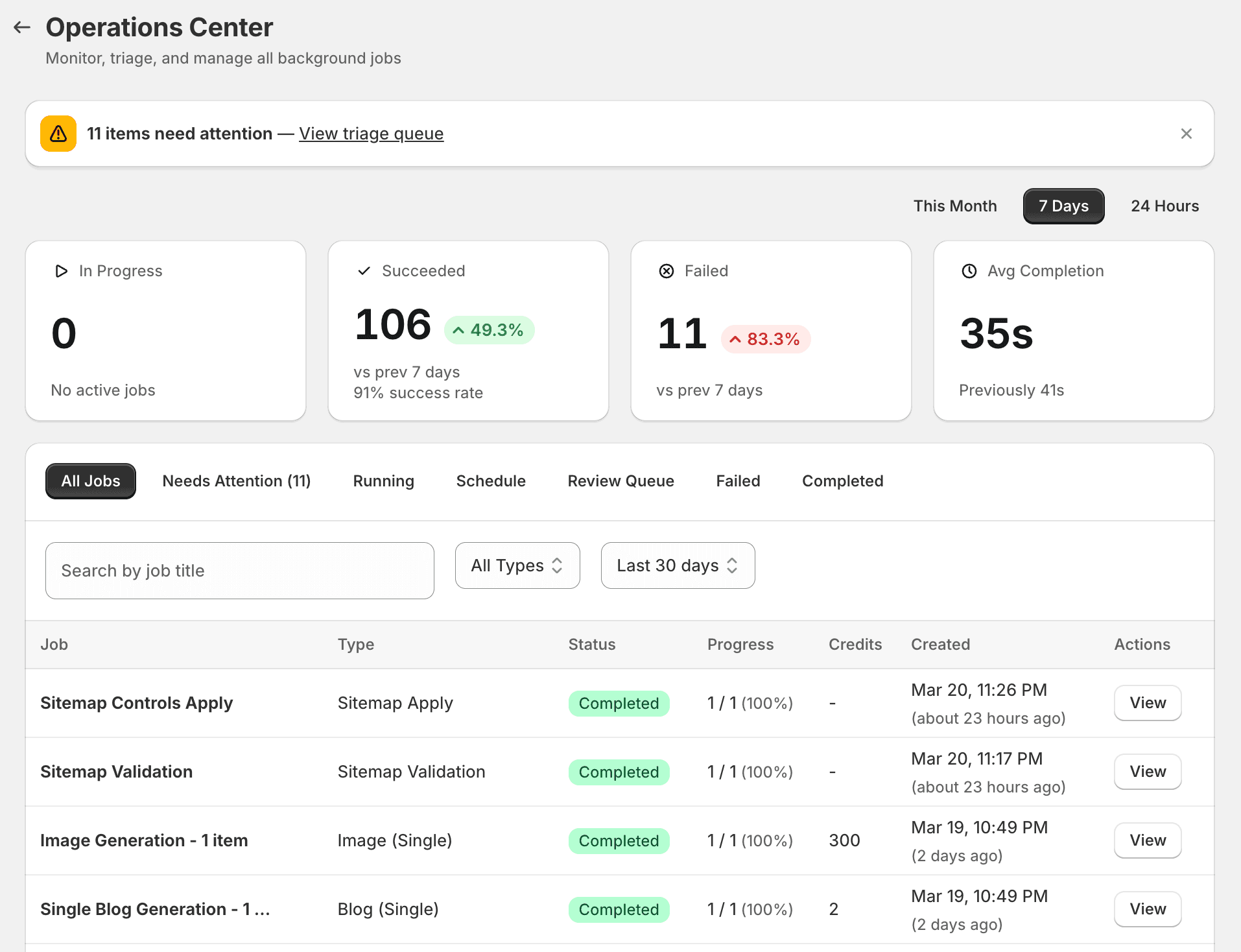
Dashboard overview
The Operations Center opens with a summary of your recent activity:
- In Progress — number of currently running operations.
- Succeeded — completed operations with a percentage change compared to the previous 7 days.
- Failed — operations that encountered errors, with trend comparison.
- Avg Completion — average time to complete an operation, compared to the previous period.
- Success rate — overall percentage of operations completing without errors.
If any items need attention, a banner shows how many items are in the triage queue with a direct link to view them.
Operation types
Every action that runs in the background appears in the Operations Center. Common operation types include:
| Type | What it does |
|---|---|
| Article Optimization | Generates SEO optimisation suggestions for a blog post (draft stage). |
| Apply Article Changes | Publishes approved article optimisations to your Shopify store. |
| Blog (Single) | Generates a single blog post from a topic and keywords. |
| Image (Single) | Generates an AI image (featured image or in-post image). |
| Sitemap Apply | Applies sitemap control rules to your Shopify store. |
| Sitemap Validation | Validates your sitemap URLs and checks for hidden resource conflicts. |
| SEO Audit | Runs content, technical, performance, or accessibility audits. |
| Bulk Optimisation | Processes multiple products or blog posts in a single batch. |
| Product Optimisation | Generates or applies SEO improvements to a single product. |
| Image Optimisation | Compresses images and generates alt text in bulk. |
Operation statuses
| Status | What it means |
|---|---|
| Queued | Operation is waiting to be processed — operations run in order. |
| In Progress | Operation is actively being processed. |
| Success | Operation finished successfully. Shows progress (e.g. 1/1 at 100%). |
| Failed | Something went wrong — check the error message and triage queue. |
| Needs Review | Operation completed but some items need your approval before publishing. |
Operations table
The main table shows all operations with the following columns:
- Job — operation name and description
- Type — the category of operation
- Status — current status with a progress indicator (e.g. “Completed 1/1 (100%)”)
- Credits — credits consumed by this operation (shown as “–” for free operations like sitemap updates)
- Created — when the operation was triggered, with a relative time label
- Actions — retry, view details, or dismiss
Filtering and search
Use the toolbar to find specific operations:
- Search — search by operation title.
- Job type — filter by operation type (e.g. only show blog generation or sitemap operations).
- Date range — filter by time period (last 7 days, last 30 days, etc.).
Triage queue
The triage queue collects operations that need your attention — failed operations, operations with warnings, and items pending review. The banner at the top of the Operations Center shows how many items need attention.
Check the triage queue regularly to ensure nothing is stuck or waiting for approval.
Retrying failed operations
If an operation fails:
- Check the error message for details
- Common causes include:
- Shopify API rate limits (wait and retry)
- Temporary network issues (retry usually works)
- Invalid data (check the affected product/post)
- Click “Retry” to re-queue the operation
- Only retry once — if it fails again, the issue may need investigation
Warning
Credits usage
The Credits column shows how many credits each operation consumed. Some operations are free:
- Free — sitemap applies, sitemap validation, article optimisation drafts, applying article changes.
- Credits — blog generation, image generation, bulk optimisation, product optimisation. Credit amounts vary by operation type.
Correlation runs
Some actions create multiple related operations. For example, “Run SEO Audit” creates separate operations for content, technical, performance, and accessibility checks. These are grouped under a single correlation ID so you can track overall progress.
Note