Google Search Console
Connect Google Search Console (GSC) to SitePx to see real search performance data — clicks, impressions, and average position — alongside your SEO health metrics.
Why connect GSC?
- See which search queries bring people to your store
- Track click-through rates and impressions over time
- Identify pages losing or gaining traffic
- Correlate SEO fixes with actual search performance changes
- Get alerts when search performance drops
Connect flow
Open GSC settings
Go to Settings → Google Search Console in SitePx.
Start the connection
Click “Connect Google Search Console”.
Sign in with Google
Sign in with the Google account that has access to your Search Console property.
Authorise SitePx
Authorise SitePx to read your Search Console data (read-only access).
Select your property
Choose your property from the list of available Search Console properties.
Note
Site verification
If your Shopify store isn't yet verified in Google Search Console, SitePx includes a verification wizard. Two methods are available:
- DNS verification (recommended) — Add a TXT record to your domain's DNS settings. This is the most reliable method and survives theme changes.
- Meta tag verification — Add a verification meta tag to your theme's head section.
Requires theme step
Enabling the app embed
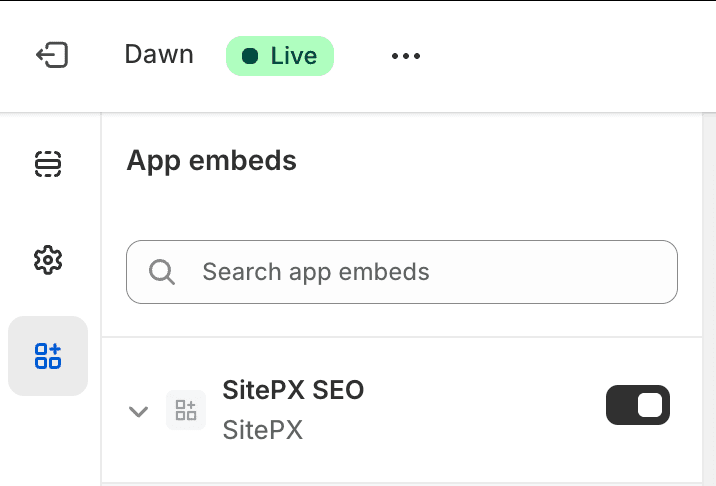
Google Search Console integration uses the SitePx app embed to inject the verification meta tag and to surface GSC data within SitePx. You need to enable the app embed once — it covers both GSC and all other SitePx features that modify your theme (such as schema markup).
Follow the on-screen prompt
When you start the GSC connection, SitePx displays a prompt to go to your theme editor. Click the link to be taken directly there.
Enable the app embed
In the Shopify theme editor, go to App embeds, find SitePx, and toggle it on.
Save your theme
Click Save in the theme editor. The app embed is now active for GSC verification and all other SitePx features.
DNS verification steps
Copy the TXT record
Copy the verification TXT record from the wizard.
Go to your domain registrar
Open your domain registrar (GoDaddy, Namecheap, Cloudflare, etc.).
Add the TXT record
Add a new TXT record with the provided value.
Wait for propagation
Wait up to 48 hours for DNS propagation (usually much faster).
Verify
Click “Verify” in SitePx.
Meta tag verification steps
Copy the meta tag
Copy the meta tag from the wizard.
Open your theme editor
Go to your Shopify theme editor.
Add the meta tag
Edit your theme's head section to include the meta tag.
Save and verify
Save your theme and click “Verify” in SitePx.
Selecting your property
After verification, select your property. Use the exact URL version that matches your store (e.g. https://www.yourstore.com). If you see multiple properties, choose the one with the most data.
Dashboard data
Once connected, the Dashboard shows:
- Search clicks over time
- Total impressions
- Average position
- Top queries
- Top pages by clicks
Data typically appears within 24–48 hours of connecting. GSC data is delayed by 2–3 days — this is a Google limitation, not SitePx.
Troubleshooting
“No properties found” — Ensure you're signing in with the correct Google account. Your account must be an owner or full user on the Search Console property.
“Access revoked” — Reconnect from Settings. This can happen if you change your Google password or revoke app access.
“No data showing” — GSC data takes 2–3 days to appear. If it has been longer, verify the property is the correct one and has recent data in Google Search Console directly.